Setting up a Digital Twins MCP server means connecting neuroflash’s synthetic audiences to an AI assistant like Claude or ChatGPT through the Model Context Protocol (MCP), the open standard that lets an assistant call an external data source[1]. Once connected, you ask an audience question in plain language and get a grounded, data-backed answer inside the chat. This quickstart walks through the whole thing, from prerequisites to your first query.
If you want the bigger picture on what a Digital Twins MCP server is and why it matters, start with our Synthetic Audience MCP Server pillar. This guide is the hands-on version.
Before You Start: Prerequisites
You need three things:
- A neuroflash account with Digital Twins access, which is where the audience data and MCP endpoint come from. Check your plan or the neuroflash Digital Twins page for exact access details.
- An MCP-compatible AI assistant. Claude (Desktop or web with connectors) and ChatGPT (with developer mode) both qualify[2][5].
- The remote MCP server URL for Digital Twins, plus whatever login the service uses to authenticate you.
What this means for your team: there is no local install, no server to host, and no code to write for the standard case. It is a hosted service you point your assistant at.
Step 1: Add the Connector in Claude
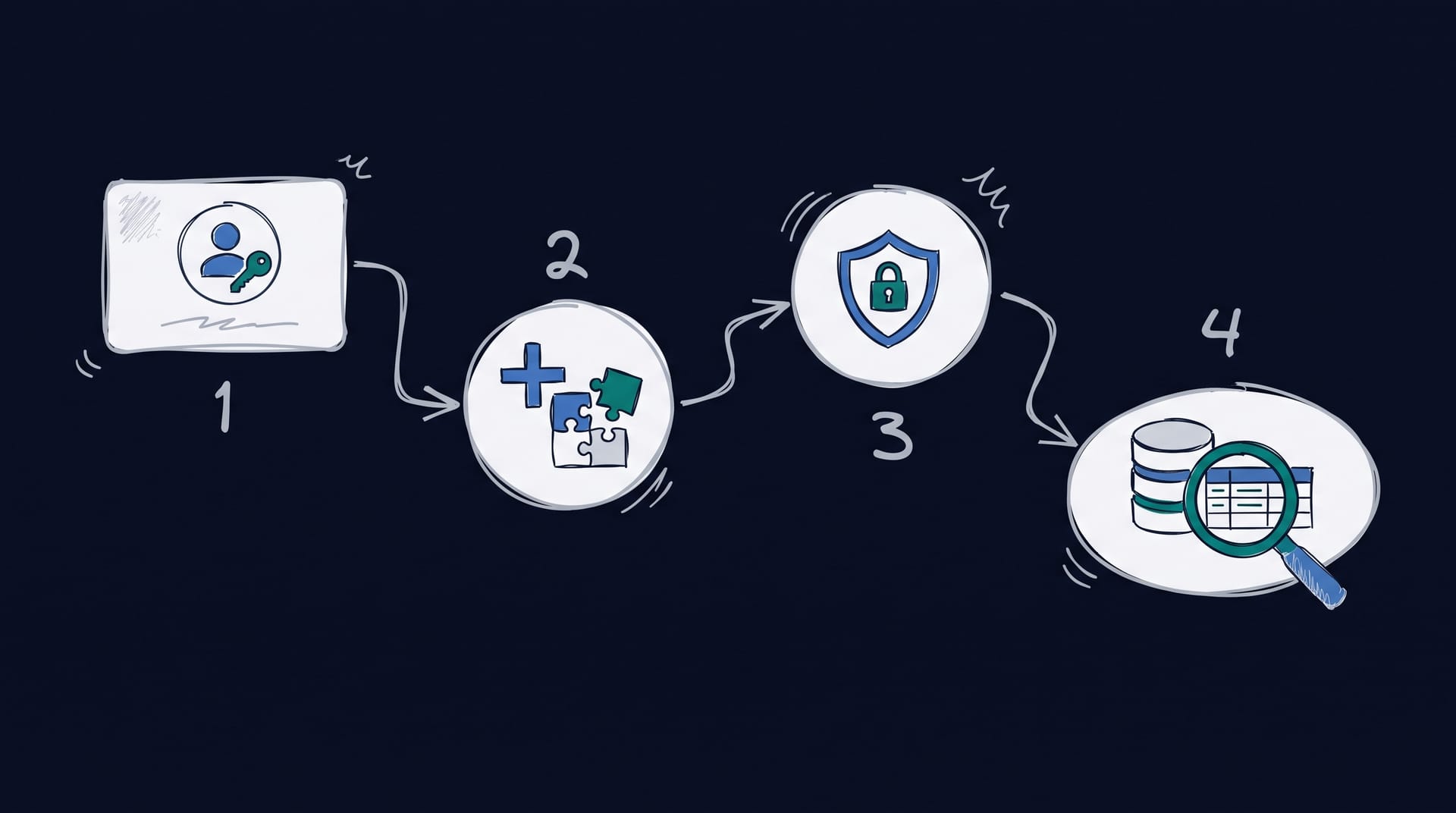
For a hosted server like Digital Twins, use Claude’s connector panel. Open Settings, then Connectors, click the plus button, choose “Add custom connector,” give it a name such as “neuroflash Digital Twins,” and paste the remote MCP server URL[3]. Claude then prompts you to authenticate, typically an OAuth login to your neuroflash account.
If you are working with a local server instead, Claude Desktop reads its configuration from claude_desktop_config.json, reachable via Settings, then Developer, then Edit Config, and you must fully restart Claude Desktop after any change[4]. For neuroflash as a hosted service, the connector route above is the one you want.
Step 2: Add the Connector in ChatGPT
In ChatGPT, first enable developer mode: an admin turns it on for the workspace, and you confirm it under Settings, then Connectors, then Advanced[5]. Then add the server: in Settings, then Connectors, choose to add a custom connector, paste the Digital Twins MCP URL, and authenticate[5].
Remember that ChatGPT supports remote MCP servers only, meaning HTTPS endpoints over the network[5]. Digital Twins is a cloud service, so it satisfies this by default. To use it, open a new chat, click the plus icon in the composer, and select the connector as your data source.
What this means for your team: the flow is nearly identical in both assistants, add a connector, paste a URL, log in, which is why most teams are up and running in a single sitting. If you want the wider context on connecting research to your assistant, see Connect market research to Claude & ChatGPT (MCP).
Step 3: Run Your First Query
With the connector active, test it with a simple, concrete question so you can judge the output. For example: “Using the Digital Twins panel, which of these two subject lines would budget-conscious parents aged 30 to 45 be more likely to open, and why?”
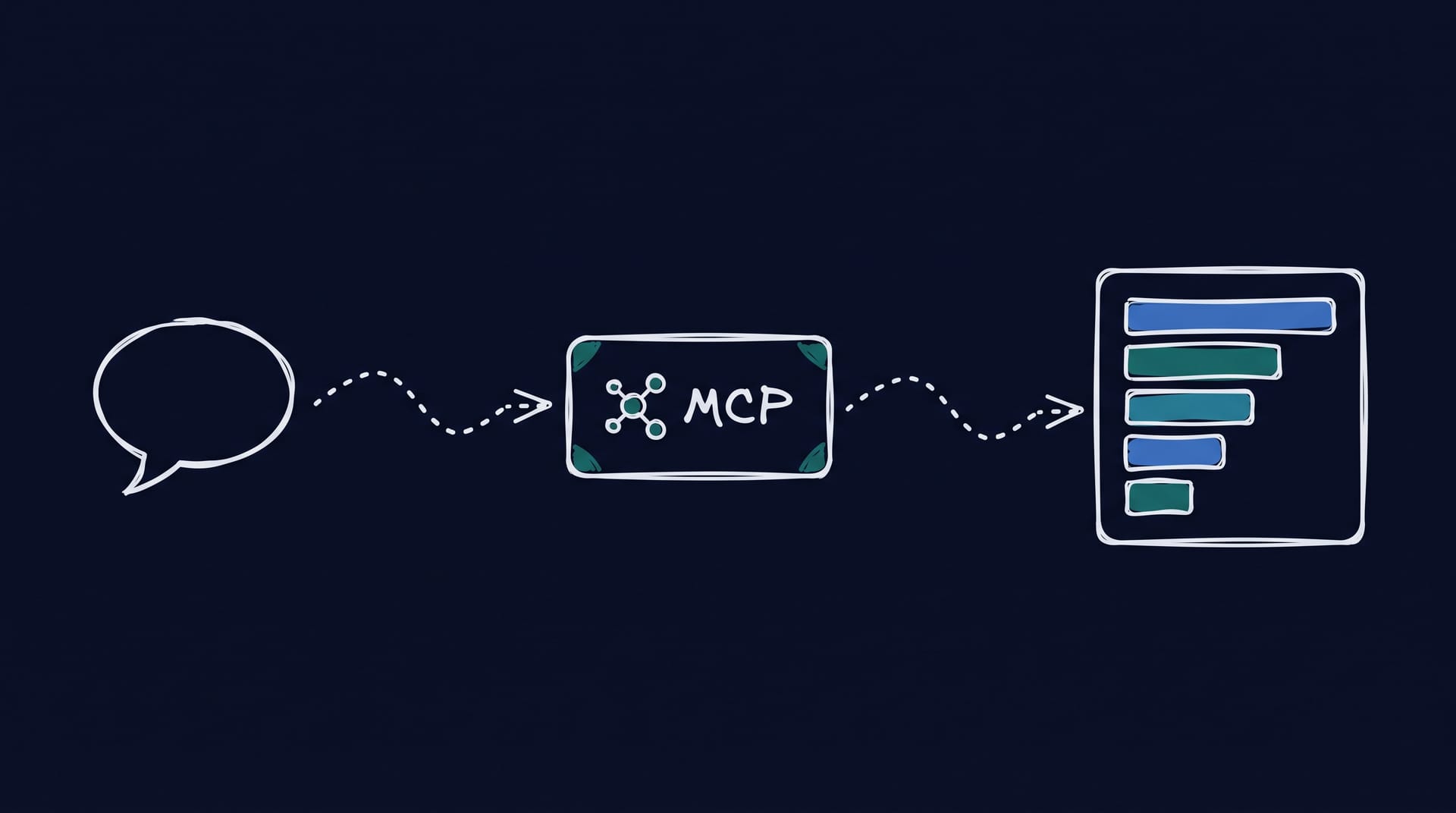
The assistant recognizes it needs external data, calls the Digital Twins MCP tool, and returns a ranked result with reasoning, all inside the chat. A good first query is specific about the audience segment and asks for a preference plus a why, because that is exactly the kind of attitudinal question grounded synthetic audiences handle best[6].
Step 4: Read the Result and Troubleshoot
A useful answer gives you a clear preference, a reason tied to the segment, and often a breakdown by percentage. If nothing comes back, the three most common causes are: the connector did not authenticate (reconnect and log in again), Claude Desktop was not restarted after a config change[4], or the assistant answered from its own general knowledge instead of calling the tool (prompt it explicitly to “use the Digital Twins panel”).
What this means for your team: if the first answer looks generic, it usually means the tool was not actually called, not that the data is wrong. Naming the tool in your prompt fixes it most of the time. For choosing between MCP options, see Best Digital Twin MCP and the broader Best MCP Servers for Marketing / Market Research roundup.
How neuroflash Digital Twins Make the Setup Worthwhile
The setup is only worth it because of what sits behind the connector. neuroflash Digital Twins are audience profiles built on more than 1,000,000 real human survey profiles, not a generic model improvising a persona. That grounding is what lets neuroflash reach 80 to 90% prediction accuracy on audience response testing, versus roughly 55% for generic AI attempting the same without real data.
The principle is straightforward: we predict, we don’t guess. Every response traces back to real profile data, which gives teams Decision Security, the confidence to act because a concept was tested against a grounded audience. Results arrive in minutes rather than the weeks a fielded study takes. neuroflash is made in Germany, GDPR compliant, and hosted with EU data residency, and Digital Twins are reachable both inside the app and through API and MCP.
Start Your First Digital Twins Query
neuroflash gives your team a grounded audience you can query from Claude, ChatGPT, or the app itself. Once the connector is in place, the fastest way to see the value is to ask one real question and read the answer.

FAQ
How long does Digital Twins MCP setup take?
For the hosted setup, usually a few minutes. You add a custom connector, paste the server URL, and log in, in whichever assistant your team uses.
Do I need to install anything locally?
No. Digital Twins is a hosted service, so there is nothing to install or host. You point Claude or ChatGPT at the remote server through its connector settings.
Why is my assistant answering without using the data?
The most common cause is that the tool was not called. Prompt the assistant explicitly to use the Digital Twins panel, and in Claude Desktop make sure you restarted the app after any config change.
Does this work with ChatGPT as well as Claude?
Yes. Both support custom MCP connectors. ChatGPT requires developer mode and a remote server, which a hosted service like Digital Twins meets by default.
What is a good first question to test with?
Something specific and attitudinal, such as which of two options a named audience segment would prefer and why. That is the kind of question grounded synthetic audiences answer most reliably.
Bottom Line
The whole point of a quickstart is that there should not be much to it, and with a hosted Digital Twins MCP server there genuinely is not. Add the connector, authenticate, ask a specific audience question, and read the grounded answer. The hard part was never the setup, it was having audience data worth querying on the other end. Get the connection in place once, and running an audience check becomes as easy as asking.
Sources
[1] Anthropic (2024): “Introducing the Model Context Protocol.” https://www.anthropic.com/news/model-context-protocol
[2] Model Context Protocol (2026): “Connect to local MCP servers.” https://modelcontextprotocol.io/docs/develop/connect-local-servers
[3] Anthropic (2026): “Get started with custom connectors using remote MCP.” https://support.claude.com/en/articles/11175166-get-started-with-custom-connectors-using-remote-mcp
[4] Anthropic (2026): “Getting Started with Local MCP Servers on Claude Desktop.” https://support.claude.com/en/articles/10949351-getting-started-with-local-mcp-servers-on-claude-desktop
[5] OpenAI (2026): “Developer mode and full MCP connectors in ChatGPT.” https://help.openai.com/en/articles/12584461-developer-mode-apps-and-full-mcp-connectors-in-chatgpt-beta
[6] Argyle, L.P., Busby, E.C., Fulda, N., Gubler, J.R., Rytting, C., Wingate, D. (2023): “Out of One, Many: Using Language Models to Simulate Human Samples.” Political Analysis. https://arxiv.org/abs/2209.06899