Web development has come a long way since its inception, and with the advent of new technologies, it continues to evolve at an unprecedented pace. One such technology that is gaining traction in the industry is WebUI Automatic1111 Stable Diffusion. It’s a powerful tool that simplifies web development by automating repetitive tasks and enhancing user experience. In this blog post, we’ll take a deep dive into WebUI Automatic1111 Stable Diffusion and explore its features, benefits, and use cases. Whether you’re a seasoned developer or just starting out, this guide will provide valuable insights into how you can leverage this technology to streamline your workflow and deliver exceptional results. So let’s get started!
What is WebUI Automatic1111 Stable Diffusion?
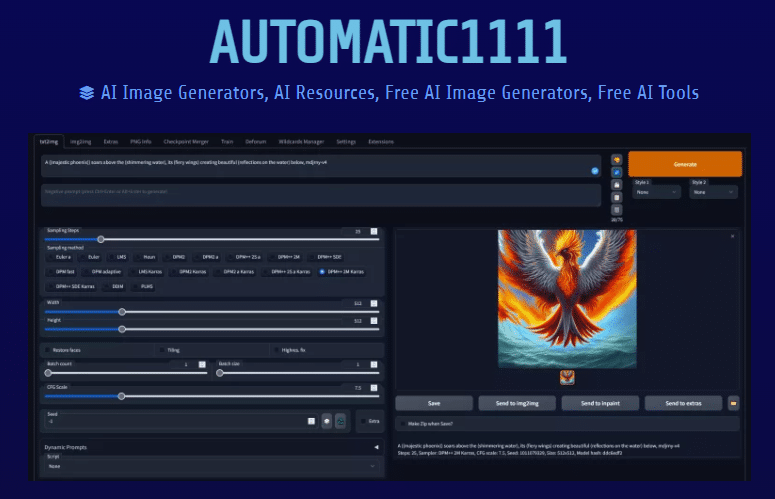
WebUI Automatic1111 Stable Diffusion is a powerful tool that revolutionizes the way we create AI-generated images. It is a user-friendly interface that allows users to effortlessly run and manage their AI models for image generation. With its efficient and stable diffusion process, it provides accurate and high-quality results.
To begin using WebUI Automatic1111 Stable Diffusion, users need to download and install the necessary files and dependencies. The process is straightforward and can be done by following a few simple steps. Once installed, users can access the tool through the command prompt or terminal by navigating to the appropriate folder.
The web interface provides a seamless experience, allowing users to easily adjust settings and parameters. With just a few clicks, users can run their models and generate stunning AI-generated images. The prompt replies swiftly, making the process even more efficient.
One of the notable benefits of using WebUI Automatic1111 Stable Diffusion is that it eliminates the need for complex coding or programming knowledge. Users can effortlessly create impressive AI art pieces without spending hours learning intricate coding techniques. The tool streamlines the entire image generation process, allowing users to focus on their creativity.
Benefits of Using WebUI Automatic1111 Stable Diffusion
One of the key benefits of using WebUI Automatic1111 Stable Diffusion is the ease of installation and usage. This stable diffusion model offers a user-friendly experience, making it accessible even for those who are not well-versed in coding or AI technologies. The step-by-step process ensures that you can install and run the model effortlessly.
1. To begin, you can download the WebUI Automatic1111 Stable Diffusion folder from the Git repository. Once downloaded, navigate to the folder using the command prompt. From there, you can easily install the necessary dependencies and set your preferred settings.
2. The prompt will guide you through each step, and all you have to do is reply accordingly.
3. Once the installation and initial setup are complete, you can start using the WebUI Automatic1111 Stable Diffusion to generate stunning AI-powered images. The model’s advanced algorithms ensure high-quality results, making it perfect for artists, designers, and anyone looking to add a touch of creativity to their work.
4. In addition to the user-friendly interface, WebUI Automatic1111 Stable Diffusion also offers a wide range of pre-trained models. These models can be easily accessed and utilized for various applications, saving you time and effort in training your own models from scratch.
Overall, the benefits of using WebUI Automatic1111 Stable Diffusion are clear. It provides a seamless installation process, a user-friendly interface, and a selection of pre-trained models, making it an ideal choice for anyone looking to harness the power of AI for image generation.
How to Access Automatic1111 Stable Diffusion
To access Automatic1111 Stable Diffusion on the web, you can follow these simple steps.
1 step
First, make sure you have Python installed on your computer. If not, visit the Python website and download the latest version.
2 step
Next, open the command prompt or terminal and navigate to the folder where you want to install Automatic1111. If you don’t have Git installed, you can download it from the Git website and perform the installation.
3 step
Once you are in the desired folder, use the following command to clone the Automatic1111 repository:
git clone [repository URL]
This will download all the necessary files and models for Automatic1111 Stable Diffusion. Once the cloning process is complete, navigate into the downloaded folder.
4 step
To run Automatic1111 Stable Diffusion, you need to install its dependencies. Use the following command in the command prompt or terminal:
pip install -r requirements.txt
This will install all the required Python packages.
5 step
Now, you are ready to use the web-based interface. Simply run the following command:
python webui.py
This will start the web server and provide you with a link to access the Automatic1111 Stable Diffusion interface.
By following these steps, you can easily access and utilize the powerful image diffusion models provided by WebUI Automatic1111 Stable Diffusion.
Tips for Optimizing Your AI Art With Stable Diffusion
Now that you have familiarized yourself with WebUI Automatic1111 Stable Diffusion and its benefits, it’s time to explore some tips to maximize your AI art creation. Follow these steps to optimize your artistic journey with this powerful tool:
1. Start with the right settings: When running the Automatic1111 Stable Diffusion, make sure to adjust the parameters to fit your desired outcome. Play around with settings such as diffusion strength, iterations, and resolution to find the combination that brings out the best in your AI-generated art.
2. Import your own models: While WebUI Automatic1111 provides a selection of pre-trained models, don’t limit yourself to these options. You can explore and use your own pre-trained models by following the command prompts and steps outlined in the documentation. This allows you to leverage your own creativity and style in your AI art.
3. Experiment with different inputs: Don’t be afraid to try out various inputs, such as images or text prompts, to generate unique and visually striking AI art. Explore the possibilities by running multiple iterations with different inputs to see how the model responds and evolves.
4. Customize the diffusion process: Take advantage of the stable diffusion feature in Automatic1111 to control the level of detail and coherence in your generated images. Adjust the step size and diffusion model parameters to achieve the desired level of artistic expression and clarity.
5. Collaborate and share: One of the beauties of WebUI Automatic1111 Stable Diffusion is the ease of sharing your artwork with the world. After completing your creation, download the final output from the web interface or command line prompt and share it on social media, forums, or art communities. Engage with fellow AI artists and receive feedback to further refine your craft.
Embrace the power of this innovative tool and let your creativity flourish in the realm of AI art. Remember to also check out the alternative and affordable AI image generator, ImageFlash, as mentioned in the upcoming section.
Alternative and Affordable AI Image Generator: ImageFlash
When it comes to exploring the powerful capabilities of automatic1111 stable diffusion for generating AI images, one of the notable options to consider is ImageFlash. While WebUI Automatic1111 Stable Diffusion may be a go-to choice for many, ImageFlash offers an alternative that is both cost-effective and efficient.
ImageFlash simplifies the process of generating AI images by providing a user-friendly interface and a wide range of pre-trained models. This allows users to effortlessly create stunning visuals without the need for technical expertise. With just a few steps, you can install ImageFlash on your system and start generating high-quality images.

Generate amazing AI Images with ImageFlash
If you are looking for a AI Image generator that can overcome challenges and limitations, look no further than ImageFlash:
- Advanced technology: ImageFlash usesa version of Stable Diffusion-models to generate images that are accurate and detailed. ImageFlash can handle complex and specific text descriptions and create images that match them precisely.
- Ethical and legal: neuroflash respects the ethical and legal standards of visual content creation. ImageFlash does not copy or steal any existing images from the internet or other sources. You will only generate original and unique images that belong to you.
- Diverse and inclusive: ImageFlash supports diversity and inclusion in visual content creation. ImageFlash is trained on a large and diverse data set that covers different categories, styles, cultures, and identities.
Our ImageFlash is an AI art generator from text that helps create high-quality images and artwork in the easiest and professional way. It uses a combination of natural language processing and deep learning algorithms to analyze text input and generate a visual output that is true to the content. With ImageFlash, you can create customized images and artwork for your brand easily, without the need for any design expertise. The tool is sophisticated, with a user-friendly design that enables easy customization of the generated art.
ImageFlash's next level features:
ImageFlash’s features include its ability to generate high-quality images and artwork in less time, provide high-quality output with finer details, support for various image sizes, and formats, and customized output that includes the ability to add company logos and watermarks. Comparing ImageFlash with other AI art generator from text creators, it separates itself with its ease of use, the ability to understand the language more accurately, and the customization of output, making it a tool that any designer or marketer can benefit from.

As you can see, ImageFlash offers a gamechanging experience in creating images and artwork, making it easy for designers, marketers, and others to generate professional results in no time. Its simple design and customization options set it apart, and ImageFlash establishes itself as one of the leading AI art generator from text creators available on the market today.
Resizing your AI Image to your needs
In this example, we see how from the simple prompt “A candy shop”, we asked ImageFlash to optimized it into a “Realistic photos” style and 4:7 ratio (512px x 896px). Let’s see the results:


Whether it’s product presentations, realistic photos, or illustrations, ImageFlash 3.0 has the capability to take a simple description and turn it into a professional-looking image within a matter of seconds. The new optimization features allow you to create high-quality and engaging visuals with ease. Pro users (and superior) can therefore enjoy the convenience and efficiency of ImageFlash without feeling the need to overthink their prompts. So why wait? Try out ImageFlash today and see how easy it is to take your visual content to new heights!
Frequently asked questions
What is the prompt limit in AUTOMATIC1111?
The prompt limit in AUTOMATIC1111, an AI language model, refers to the maximum number of tokens or words that can be used in a single interaction. The current prompt limit for AUTOMATIC1111 is 4096 tokens. This means that the total number of words, including both input and output, within a conversation should not exceed this limit. The prompt limit is an essential consideration when using AUTOMATIC1111. It helps to ensure that requests and responses stay within the model’s capabilities and maintain the desired conversational flow. Exceeding the prompt limit may cause the model to truncate or cut off the text, resulting in incomplete or unexpected outputs, potentially affecting the overall coherence of the conversation. As AUTOMATIC1111 hails from OpenAI, keeping track of the token count is vital when using the model. Each word or character constitutes one token, and punctuation, spaces, and even formatting also count towards the token limit. Keeping the conversation within the specified limit allows for more accurate and coherent responses from the model. In summary, the prompt limit in AUTOMATIC1111 is set at 4096 tokens, which includes both input and output text. It is crucial to manage the conversation within this limit to ensure the model generates desired and meaningful responses.
How do I use Stable Diffusion in my browser?
To use Stable Diffusion in your browser, follow these steps: 1. Open your web browser (e.g., Chrome, Firefox, Safari). 2. Navigate to the Stable Diffusion website or download the Stable Diffusion browser extension from a trusted source. 3. Install the Stable Diffusion extension by clicking on the “Add to Browser” or “Install” button, depending on the browser you are using. 4. Once the extension is installed, you may need to restart your browser for the changes to take effect. Follow any on-screen prompts to do so. 5. After restarting, you should see the Stable Diffusion icon in your browser’s toolbar or menu. Click on it to open the extension. 6. In the Stable Diffusion extension, you can customize your settings and preferences according to your needs. This may include options such as adjusting the level of diffusion, selecting specific websites to apply Stable Diffusion, or enabling/disabling the diffusion feature on certain pages. 7. When you visit a webpage, Stable Diffusion will activate and begin to apply its diffusion algorithm, which helps stabilize the page’s content and layout. This is especially useful when viewing pages with dynamic content or elements that tend to shift or load slowly. 8. You can adjust the diffusion settings in real-time by interacting with the Stable Diffusion extension. This allows you to fine-tune and optimize the diffusion experience for different websites and browsing scenarios. Remember to keep the Stable Diffusion extension updated to benefit from the latest improvements and optimizations for a smoother browsing experience.
How do I run AUTOMATIC1111?
To run AUTOMATIC1111, follow these steps in detail: Firstly, ensure that you have the necessary software and system requirements to run AUTOMATIC1111. Check if your operating system is compatible with the program. Then, locate the installation file for AUTOMATIC1111 on your computer. It is typically a .exe or .dmg file. Double-click on the installation file to initiate the installation process. Follow the on-screen instructions to complete the installation. Once installed, locate the shortcut or icon for AUTOMATIC1111. It may be on your desktop or in the program files folder. Click on the AUTOMATIC1111 shortcut to launch the program. Wait for it to load completely. Upon launching, you may be prompted to log in using your credentials. Enter your username and password in the provided fields. After logging in, you will be presented with the main interface of AUTOMATIC1111. From here, you can access various features and functionalities the program offers. To begin using AUTOMATIC1111, explore the menu options or buttons to find the specific tool or task you wish to perform. Follow any additional on-screen instructions or prompts specific to the feature you are using within AUTOMATIC1111. Remember to save your progress regularly and exit the program properly when you are finished using AUTOMATIC1111. In conclusion, running AUTOMATIC1111 involves checking compatibility, installing the software, launching it from the shortcut, logging in, exploring the interface, using the desired features, following prompts, and properly exiting the program.
Conclusion
In conclusion, exploring the WebUI Automatic1111 Stable Diffusion has provided us with an in-depth understanding of its capabilities and benefits. This innovative tool, powered by AI, offers a seamless and efficient way to generate stunning and realistic images. Additionally, the article highlighted the alternative and cost-effective ImageFlash as an AI image generator for those seeking different options.